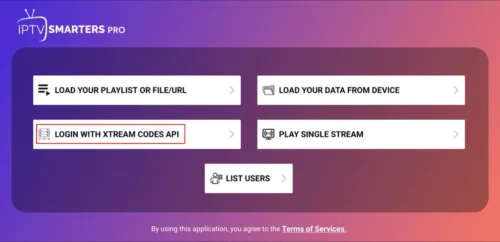
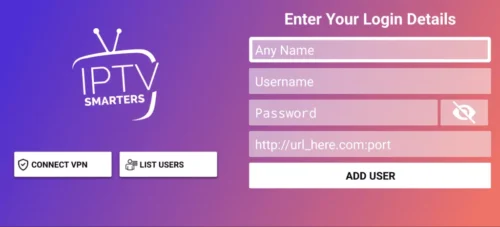
Step 1: Once the app is installed, open the IPTV Smarters Pro app and click on the “add new user”.
Step 2: Now, you need to login into the app. There are two ways to do so. Either by using M3U playlist or by using the username and password that is the Xtream codes API.
The username and password can be found by looking at the Email Credentials we sent you.

Step 3: Once you are done logging in, you will be redirected to the list users screen . Click on the profile you just created.
Step 4: Congratulations, you have now successfully set up and configured the IPTV Smarters Pro app.
SMART TV (Samsung/LG/Android)
Setup instructions for a Samsung/LG/Android TV
Search in your TV for one of the APPs below
- IBO Player (Highly Recommended/Very Easy to Setup)
- IPTV Smarters Pro (select Xtream codes API ) (Highly Recommended/Very Easy to Setup)
- DUPLEX play
- Flix IPTV
- SET IPTV
- ELK Player
- Nanomid
- Smart IPV
- Smart STB
- STB Emu
Once you install one of these recommended APPs,
You can use the subscription info that you received from us to log in.
In case you are facing any issues, please contact our support team on WhatsApp and they will help you set the subscription in your APP.
FIRESTICK : How to install SMARTERS IPTV
. We will first install the Downloader app
This app will help you sideload IPTV Smarter on FireStick (because browser downloads are not allowed)
You may also read our detailed guide on how to sideload apps on FireStick with Downloader
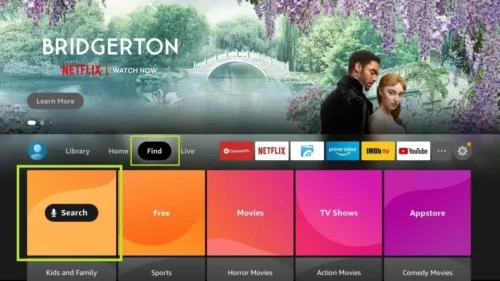
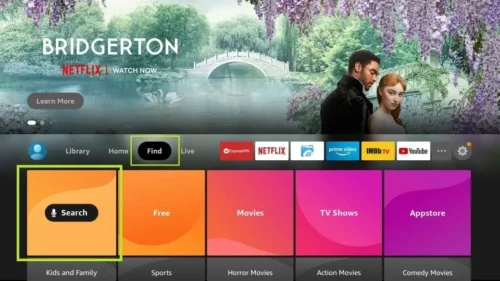
2. Click the Find > Search option on the home screen of FireStick

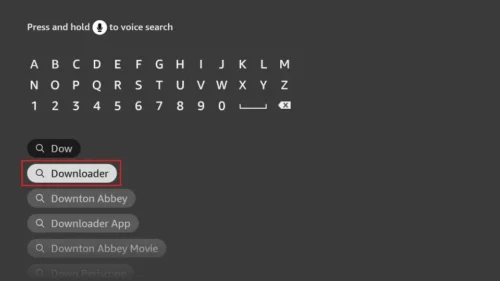
3. Type the name of the app (which is Downloader)
Click the Downloader option when it is displayed in the search results Choose the ownloader icon on the following screen and download and install the app
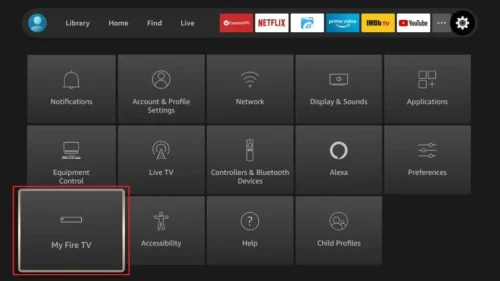
4. Get back to the home screen of FireStick after installing the Downloader app In the menu bar, click Settings
5. In the Settings, choose the option My Fire TV
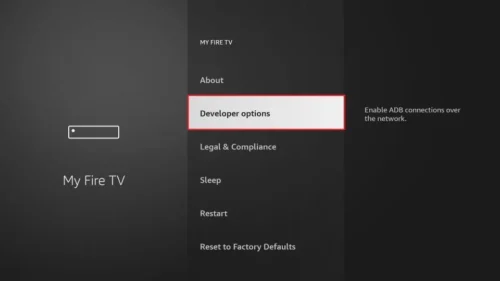
6. When the following set of options are displayed on the next screen, click Developer Options
APPLE ( iPhone/iPad/Apple TV)
Apple ( iPhone/iPad/Apple TV)
Please install one of the recommended IOS apps below:
- IBO Player (Highly Recommended/Very Easy to Setup)
- IPTV Smarters Pro (select Xtream codes API ) (Highly Recommended/Very Easy to Setup)
- GSE IPTV (select Xtream codes API)
- ELK Player
Once you install one of these recommended APPs, select Xtream codes API and you can use the subscription info that you received from us to log in.
In case you are facing any issues, please contact our support team on WhatsApp and they will help you set the subscription in your APP.
ANDROID ( Smartphone,Android Box)
Go to the play store and search for one of the recommended APPs Below:
- IBO Player (Highly Recommended/Very Easy to Setup)
- IPTV Smarters Pro (select Xtream codes API ) (Highly Recommended/Very Easy to Setup)
- DUPLEX play
- Flix IPTV
- SET IPTV
- ELK Player
- Nanomid
- Smart IPV
Once you install one of these recommended APPs, You can use the subscription info that you received from us to log in.
In case you are facing any issues, please contact our support team on Whatsapp and they will help you set the subscription in your APP.
PC/MAC (VLC Software)
Watch IPTV on Your Computer & Laptop
- IPTV Smarters Pro (select Xtream codes API ) Download
- Kodi IPTV Player Download
- Download VLC ( Download URL https://www.videolan.org/vlc/index.html)
- Open VLC Player
- Go to Media -> Open Network stream.
- Add your Subscription M3U URL we sent to you and press play.
- Wait till all the Channels load (this may take some time)
- In case you are facing any issues with M3U loading, please contact our support team on WhatsApp and they will help you set the subscription in your VLC.
Choose a Channel and enjoy the show
STB Emulator
This tutorial will guide you through the simple setup instruction for STB Emulator.
‘STB Emulator’ can emulate the following IPTV set-top boxes.
| IPTV Set-top Box | Support |
| MAG 200 | Yes |
| MAG 245 | Yes |
| MAG 250 | Yes |
| MAG 260 | Yes |
| MAG 270 | Yes |
| MAG 275 | Yes |
| Aura HD | Yes |
STB Emulator Setup Instructions:
- Download ‘STB Emulator’ from the Google Play Store here.
- Install and Load the ‘STB Emulator’ app and you will see your ‘MAC address’ on screen.
- Tap near the ‘Top right corner’ and then click ‘Settings’ – the 4th icon from the right.
- Tap ‘Profiles’.
- Tap ‘Test portal’ to modify the existing profile or ‘Add profile’ to start a new one.
- Tap ‘STB Model’.
- Tap ‘MAG 250’ or whichever STB you wish to emulate.
- Tap ‘Portal settings’.
- Enter your ‘Portal URL’ (Check your activation e-mail) and click OK.
- Now tap ‘Screen Resolution’.
- Choose ‘1280×720’ (You can choose higher with internet speed 16+ Mbps).
- Exit the app and restart.
- You will now see your channel list.
Troubleshooting STB Emulator
If you have any problems viewing the Channels please follow this recommended fix:
Restart your App, Device/Box, and Wi-Fi Router.
In case you are facing any issues, please contact our support team on WhatsApp and they will help you set the subscription in your APP.
MAG250/254/256
Connect MAG DEVICE to TV and Internet. Then do as follows
- Go to: Settings—> System Settings —> Servers—>Portals
- Set Portal 1: Get Best
- Set Portal 1 URL ( see your E-mail )
- Set Portal 2 Name leave this empty add this only If you order the second subscription
- Set Portal 2 URL leave this empty add this only If you order the second subscription
- Save everything
- Go back to system settings and click “Restart Portal”
- After the box is restarted, wait until the TV load
- A screen shows the channels will appear.
In case you are facing any issues, please contact our support team on WhatsApp and they will help you set the subscription in your APP.
ROKU Device
How to Install IPTV on Roku With a Simple Trick
This tutorial provides step-by-step instructions to install IPTV on Roku. Using a Roku device, we must “sideload” IPTV on the Roku device. The instructions below will require the use of a computer in order to download the IPTV app file and add it to your Roku streaming device.
If you are using another IPTV player such as TiviMate, you can also watch IPTV on Roku by casting to your Roku device. IPTV Smarters is one of the best IPTV Players, compatible with hundreds of IPTV services that use a server URL.
Anyways, let’s get into how to install IPTV on Roku. I divided the instructions into four parts to make them easier to follow:
- Part 1: Enabling developer options on Roku
- Part 2: Adding the IPTV Smarters channel
- Part 3: Downloading the IPTV Smarters package on your computer
- Part 4: Installing IPTV Smarters on Roku
Don’t worry, the process is easier than it sounds. Let’s begin.
Enable Developer Options on Roku
1. Launch your Roku by switching to its HDMI input on your television.
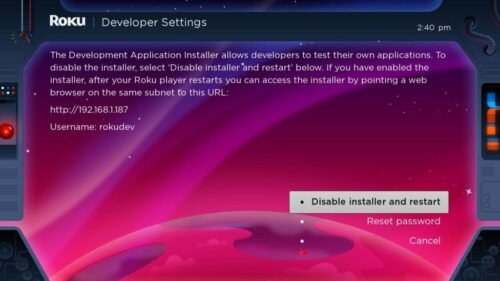
2. Grab your Roku remote and press the following buttons in this order: Home Button x3, Up Arrow x2, Right Arrow x1, Left Arrow x1, Right Arrow x1, Left Arrow x1, Right Arrow x1.
3. If done correctly, the developer options menu will appear on your Roku TV screen.
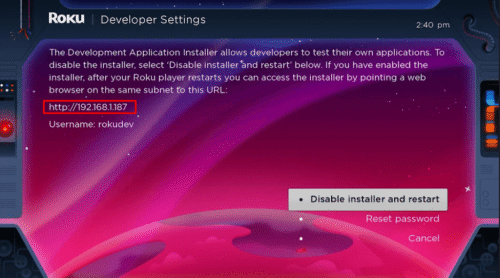
4. Write down the IP address listed on the screen.

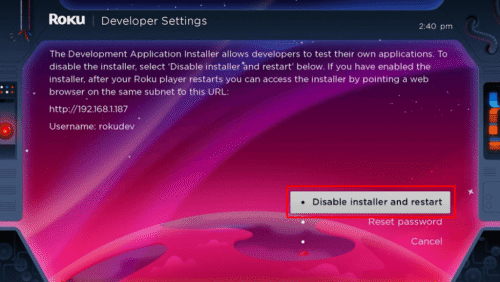
5. Select Enable installer and restart (mine says Disable because I’ve already done this).

6. Scroll through the Developer Tools License Agreement and select I Agree.
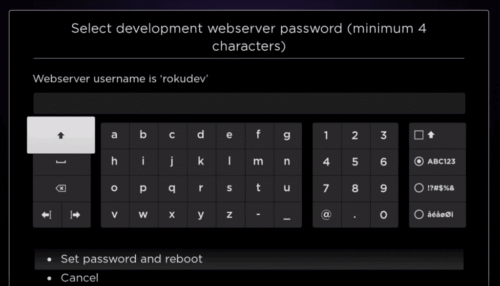
7. Create a webserver password using the keyboard that appears. You will need your webserver password for a later step.

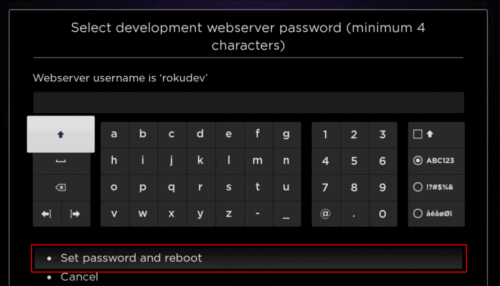
8. Select Set password and reboot.
Part 2: Add IPTV Smarters Channel
1. Head to your computer and navigate to my.roku.com using any browser.
2. Type in your username and password for your Roku account, and click Submit.
Add Your Heading Text Here
Lorem ipsum dolor sit amet, consectetur adipiscing elit. Ut elit tellus, luctus nec ullamcorper mattis, pulvinar dapibus leo.